AI Integration · Tools
How to Set Up Clawdbot: Personal AI Assistant Guide
Clawdbot turns WhatsApp, Telegram, and Discord into a self-hosted AI assistant with persistent memory. Here's the setup guide for macOS, Linux, and Windows.

Anurag Verma
14 min read
Sponsored
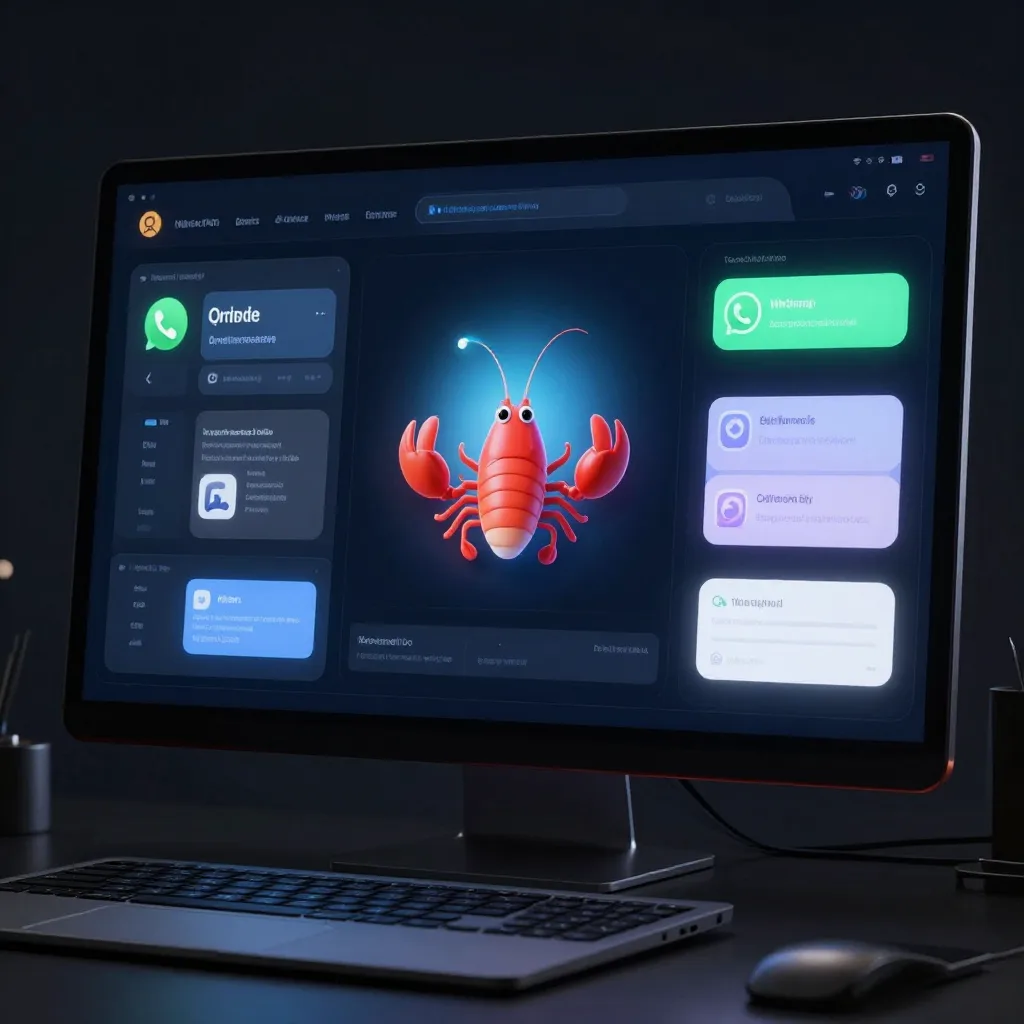
If you haven’t heard of Clawdbot yet, you will soon. It went from a personal side project by Peter Steinberger (founder of PSPDFKit) to 30,000+ GitHub stars in January 2026 alone, a rise we covered in more detail in the Clawdbot/Moltbot/OpenClaw viral saga. After spending a couple of weeks using it as my daily AI assistant, I understand why.
Clawdbot is an open-source, self-hosted AI assistant that lives inside the messaging apps you already use: WhatsApp, Telegram, Discord, Slack, Signal, even iMessage. Unlike ChatGPT or Claude in a browser tab, Clawdbot is always on, remembers your entire conversation history, and can actually do things on your computer. It can browse the web, manage your email, run terminal commands, and automate workflows.
This guide walks you through setting it up from scratch, whether you’re on a Mac, Linux box, or Windows machine.
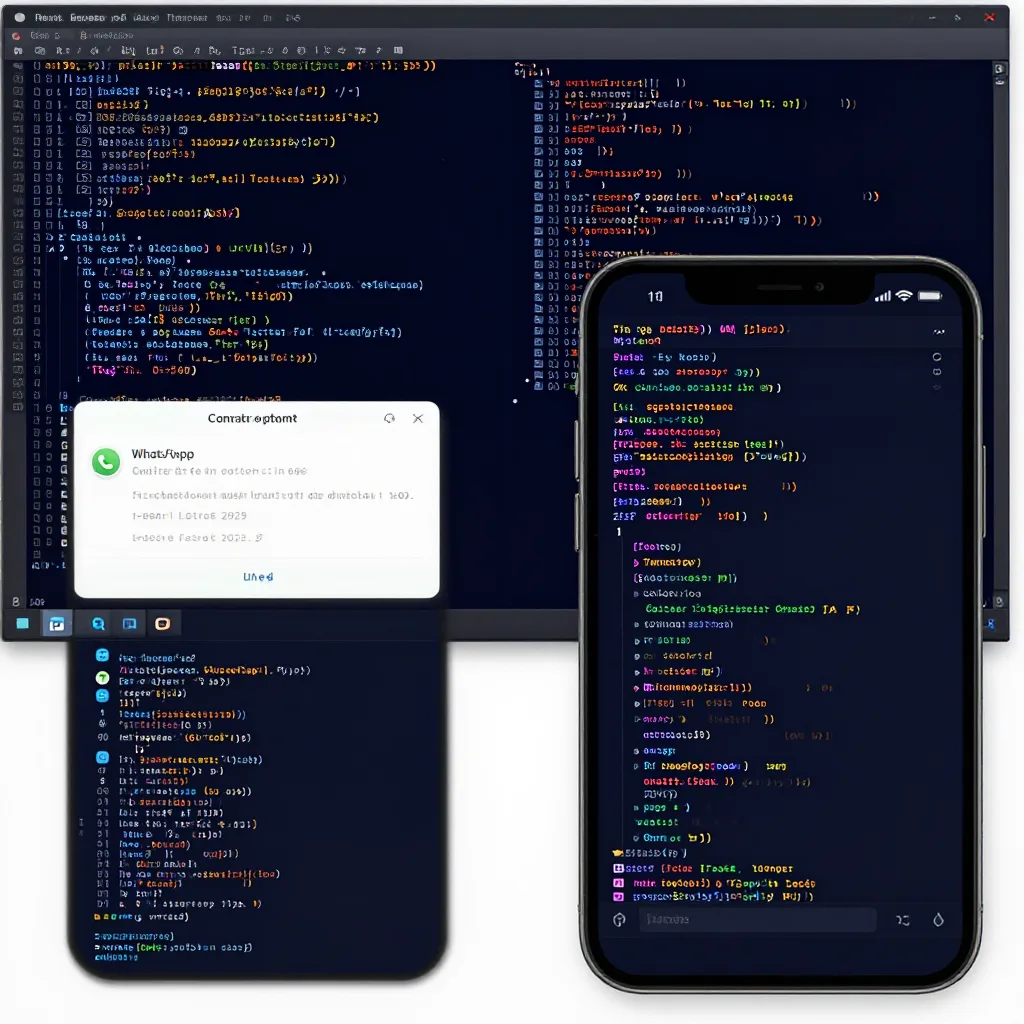 Clawdbot connects your messaging apps to a powerful local AI agent
What Makes Clawdbot Different
Clawdbot differs from ChatGPT or Claude in a browser because it has persistent memory across weeks, lives inside apps you already use, and can take real actions like browsing the web or running terminal commands, not just answering questions in a session-based chat window.
| Feature | ChatGPT/Claude | Clawdbot |
|---|---|---|
| Memory | Session-based, limited | Unlimited, persistent across weeks/months |
| Where it lives | Browser tab | Your messaging apps (WhatsApp, Telegram, etc.) |
| Can take actions | Limited | Full computer access (browser, terminal, files, email) |
| Proactive | Never | Can send you alerts, briefings, reminders |
| Data ownership | Cloud (OpenAI/Anthropic servers) | Fully local, you control everything |
| Cross-device | Separate sessions | Unified (start on phone, continue on desktop) |
| Cost | $20/month subscription | Pay-per-use API ($20-50/month typical) |
| Customizable | System prompts only | Full personality, skills, and workflow customization |
The persistent memory is the killer feature for me. I can reference a conversation from two weeks ago and it knows exactly what I’m talking about. No “I don’t have access to previous conversations” nonsense.
Prerequisites
Before you start, make sure you have:
- Node.js 22 or newer. Clawdbot requires Node 22+
- An API key. Anthropic (Claude) recommended for best results, or OpenAI
- A messaging app. WhatsApp, Telegram, Discord, Slack, or others
- Terminal access. macOS Terminal, Linux shell, or Windows PowerShell
Which AI Model Should You Use?
| Provider | Model | Cost (per 1M tokens) | Best For |
|---|---|---|---|
| Anthropic | Claude Sonnet | $3 input / $15 output | Best balance of quality and cost |
| Anthropic | Claude Opus 4.5 | $15 input / $75 output | Complex tasks, long context |
| OpenAI | GPT-4o | $2.50 input / $10 output | General-purpose, good value |
| OpenAI | GPT-4o-mini | $0.15 input / $0.60 output | Budget-friendly, lighter tasks |
| Local | Ollama models | Free (hardware cost) | Privacy-first, no API dependency |
I’d recommend starting with Claude Sonnet via Anthropic API. It’s the sweet spot for agentic tasks: smart enough to handle complex workflows, affordable enough for daily use. Typical usage runs $20-50/month. If you’d rather avoid API costs entirely, our guide to running local LLMs with Ollama covers what to expect from the local-model route.
Installation
macOS & Linux
Open your terminal and run:
curl -fsSL https://clawd.bot/install.sh | bashThat’s it. The script installs Node.js if needed and sets up the Clawdbot CLI.
Windows
Open PowerShell as Administrator and run:
iwr -useb https://molt.bot/install.ps1 | iexImportant: WSL2 (Windows Subsystem for Linux) is strongly recommended over native Windows. If you’re comfortable with WSL, install Ubuntu via the Microsoft Store, then follow the macOS/Linux steps inside WSL instead. You’ll have a better experience.
From Source (For Developers)
If you want to contribute or run the latest development version:
git clone https://github.com/clawdbot/clawdbot.git
cd clawdbot
pnpm install
pnpm ui:build
pnpm build
clawdbot onboard --install-daemon
For active development with hot reload:
pnpm gateway:watchThe Onboarding Wizard
This is where the magic happens. Run:
clawdbot onboard --install-daemonThe --install-daemon flag is important. It sets up Clawdbot as a background service so it starts automatically and stays running. The wizard walks you through everything:
Step 1: Risk Acknowledgment
Clawdbot will ask you to confirm that you understand what it can do. This isn’t just a formality. You’re giving an AI assistant access to your browser, files, and terminal. Take this seriously.
Step 2: Choose Setup Mode
You’ll see options like Quickstart and Advanced. If this is your first time, go with Quickstart. You can always reconfigure later.
Step 3: Select Your AI Provider
Pick your LLM provider:
- Anthropic (recommended): paste your API key from console.anthropic.com
- OpenAI: paste your API key from platform.openai.com/api-keys
If you’re already getting Claude-pilled with Claude Code, you can also reuse those credentials with claude setup-token.
Step 4: Choose Your Model
Select which specific model to use. For Anthropic, Claude Sonnet is the recommended default. You can upgrade to Opus 4.5 for heavier tasks later.
Step 5: Connect a Messaging Channel
This is where you pick where Clawdbot will live. Your options include:
- WhatsApp: scan QR code via Linked Devices
- Telegram: create a bot via @BotFather
- Discord: create a bot application
- Slack: install as a workspace app
- Signal, iMessage, Google Chat, Microsoft Teams, Matrix: all supported
You can skip this step and just use the built-in web dashboard to start chatting immediately.
Step 6: Configure Skills
Skills are modular plugins that extend what Clawdbot can do. The wizard lets you enable:
- Web search: uses Brave Search API (2,000 free queries/month)
- Browser control: navigate websites, fill forms, scrape data, similar in spirit to the AI browser agents now shipping in Comet, Atlas, and Mariner
- Email: Gmail integration for reading and sending
- Calendar: Google Calendar management
- GitHub: PR reviews, issue management, code operations
Enable what you need now. You can add more later.
Step 7: Done
The wizard installs the Gateway daemon and you’re ready to go.
Verifying Your Installation
After setup, run these commands to make sure everything is working:
# Check service status
clawdbot gateway status

# Run health check
clawdbot health

# Security audit (recommended)
clawdbot security audit --deep
If the gateway isn’t running, start it manually:
clawdbot gateway --port 18789 --verboseThe Dashboard
The fastest way to start chatting, no channel setup needed:
clawdbot dashboardThis opens your browser at http://127.0.0.1:18789/ with a web chat interface. You can start talking to your AI assistant immediately.
Setting Up Messaging Channels
This is the most popular channel and the one I use daily.
clawdbot channels loginA QR code appears in your terminal. On your phone, open WhatsApp, go to Settings > Linked Devices > Link a Device, and scan the code.
Once linked, message yourself (or the bot number) and you’ll get a pairing code. Approve it:
clawdbot pairing approve whatsapp <code>Now you can message your AI assistant on WhatsApp just like texting a friend.
Telegram
- Open Telegram and message @BotFather
- Send
/newbotand follow the prompts to create a bot - Copy the bot token
- Paste it into Clawdbot’s configuration when prompted
Discord
- Go to the Discord Developer Portal
- Create a new application
- Enable Message Content Intent under Bot settings
- Copy the bot token
- Add the bot to your server
- Configure in Clawdbot
Other Channels
Slack, Signal, iMessage, Google Chat, Microsoft Teams, and Matrix are all supported. Each has its own setup flow. The onboarding wizard or clawdbot channels login will guide you through it.
Pairing & Security
This is important and often overlooked.
By default, Clawdbot uses a pairing system. When an unknown person messages your bot, it generates a pairing code instead of responding. You must explicitly approve each person:
# See pending pairing requests
clawdbot pairing list whatsapp

# Approve a specific request
clawdbot pairing approve whatsapp <code>
This prevents random people from using your AI assistant (and running up your API bill). It’s also a meaningful defense against the kind of AI agent security incidents that happen when an agent with terminal and browser access takes instructions from the wrong source.
Security Best Practices
- Run
clawdbot security auditregularly - Use a dedicated phone number for WhatsApp, not your personal one
- Never add the bot to public group chats. Treat it as a private terminal
- Scope API tokens tightly (minimum permissions for Gmail, GitHub, etc.)
- Enable sandbox mode for risky operations
- Whitelist specific terminal commands instead of allowing unrestricted access
Customizing Your Assistant
The SOUL.md File
This is the personality file that defines how your assistant behaves. It lives at ~/clawd/SOUL.md and you can edit it freely.
Here’s what a basic SOUL.md might look like:
# Personality

You are my personal AI assistant. Be direct, concise, and practical.
Don't be overly formal. We're on WhatsApp, not in a boardroom.

# Context

- I'm a software developer based in [your city]
- I work primarily with TypeScript, React, and Node.js
- My work hours are 9am-6pm, don't send proactive messages outside those
- I prefer bullet points over paragraphs

# Rules

- Always confirm before sending emails on my behalf
- Never execute destructive commands (rm -rf, drop database, etc.) without asking
- When researching, cite your sources
- If you're unsure about something, say so
The more context you give it, the more useful it becomes. I’ve gradually built mine up over weeks, and the assistant gets better as it learns my preferences.
Adding Skills
Skills extend Clawdbot’s capabilities. They live in ~/clawd/skills/ as SKILL.md files.
You can browse and install skills from ClawdHub, the community skill registry. It plays a similar role to the tool registries covered in our MCP servers practical guide, just scoped to Clawdbot’s own skill format:
clawdbot skills list
clawdbot skills install <skill-name>
Or create your own by adding a SKILL.md file in a subfolder of ~/clawd/skills/.
Chat Commands
Once you’re chatting with Clawdbot (via any channel), these commands are available:
| Command | What It Does |
|---|---|
/status | Show session info: model, tokens used, cost |
/new or /reset | Start a fresh session |
/compact | Compress context (summarize history to save tokens) |
/think <level> | Set thinking depth: off, minimal, low, medium, high, xhigh |
/verbose on/off | Toggle detailed output |
/usage off/tokens/full | Control usage display |
/restart | Restart the gateway |
The /compact command is particularly useful when conversations get long. It summarizes the history to reduce token usage without losing important context.
Architecture Overview
Understanding the architecture helps with troubleshooting:
Your Phone (WhatsApp/Telegram/Discord/etc.)
         ↓
┌─────────────────────────────────┐
│   Gateway (control plane)       │
│   ws://127.0.0.1:18789          │
│                                 │
│   ├── Agent (Claude/GPT brain)  │
│   ├── Skills (web, email, etc.) │
│   ├── Memory (local storage)    │
│   └── Tools (browser, terminal) │
└─────────────────────────────────┘
         ↓
  Your Computer (browser, files, apps)
The Gateway is the central hub. It runs locally on your machine, connects to your messaging channels, routes messages to the AI agent, and executes tool calls. Everything stays on your hardware: messages, memory, and actions.
Remote Access with Tailscale
If you’re running Clawdbot on a Mac Mini or home server and want to access it from anywhere:
# Tailscale serve (accessible only within your tailnet)
# Configure in gateway settings:
# gateway.tailscale.mode: serve

# Tailscale funnel (accessible from public internet)
# gateway.tailscale.mode: funnel
# Requires password auth: gateway.auth.mode: "password"
SSH tunnels also work if you prefer that approach.
Cost Management
API costs can add up if you’re not careful. Here’s what to expect:
| Usage Level | Monthly Cost | Description |
|---|---|---|
| Light | $10-20 | A few messages per day, simple tasks |
| Moderate | $20-50 | Daily use, research, email management |
| Heavy | $50-150 | Complex automations, multi-step workflows |
| Power user | $150-300+ | Multiple agents, continuous automation |
Tips to Keep Costs Down
- Use Claude Sonnet instead of Opus for everyday tasks
- Use
/compactregularly to reduce context size - Set thinking level to
loworminimalfor simple queries - Use
gpt-4o-minifor simple tasks if on OpenAI - Consider running a local model via Ollama for basic queries, with cloud fallback for complex tasks
Troubleshooting
Gateway Won’t Start
# Check if something else is using port 18789
lsof -i :18789

# Start with verbose logging
clawdbot gateway --port 18789 --verbose

# Check Node version (needs 22+)
node --version
WhatsApp Connection Drops
This is the most common issue. WhatsApp Web sessions expire periodically.
# Re-login
clawdbot channels login
Scan the QR code again. Your conversation history is preserved.
High API Costs
# Check usage
clawdbot status
Review which conversations are consuming the most tokens. Use /compact in long-running sessions.
Messages Not Being Delivered
Check pairing status:
clawdbot pairing list <channel>If messages from you aren’t being processed, you may need to re-approve pairing.
Run the Doctor
When in doubt:
clawdbot doctorThis checks for common configuration issues and risky settings.
Real-World Use Cases I’ve Found Useful
After two weeks of daily use, here’s what I actually use Clawdbot for:
Morning briefing. I set up a cron job that sends me a summary of my calendar, unread important emails, and weather at 7:30am every morning via WhatsApp. I read it while having coffee.
Research on the go. When I’m reading something on my phone and want to dig deeper, I just message Clawdbot. It searches the web, summarizes findings, and sends them back, all without opening a browser.
Quick code help. I snap a screenshot of an error, send it to Clawdbot on WhatsApp, and get a fix. The multimodal understanding works surprisingly well.
Email triage. “Check my email and flag anything urgent.” It scans my inbox, categorizes messages, and gives me a summary. I respond to the important ones and ignore the rest.
Meeting prep. “I have a meeting with [company] tomorrow, give me a briefing.” It researches the company, checks our CRM for history, and sends me talking points.
Who Should (and Shouldn’t) Use Clawdbot
Good fit if you:
- Want a genuinely useful AI assistant, not just a chatbot
- Are comfortable with terminal/command line
- Care about data ownership and privacy
- Want persistent memory across conversations
- Use messaging apps as your primary communication tool
Not a good fit if you:
- Want zero-setup, just-works simplicity
- Aren’t comfortable giving AI access to your system
- Need enterprise-grade reliability guarantees
- Don’t want to manage API costs
What’s Next
Clawdbot is moving fast. The community is active (5,000+ Discord members), new skills are being published regularly on ClawdHub, and the development pace is impressive. Companion apps for macOS, iOS, and Android add native integration with cameras, screen recording, and voice, turning your phone into a true AI-powered assistant.
If you’ve been waiting for AI assistants to move beyond browser tabs and actually integrate into your life, Clawdbot is the closest thing I’ve found to that vision.
Resources
- Official Documentation
- GitHub Repository
- Discord Community
- ClawdHub Skills Registry
- Beebom: Setup on Mac Mini
- Beebom: Setup on Windows
Want help setting up Clawdbot for your team or integrating it into your workflow? Talk to CODERCOPS. We’ve deployed personal AI assistants for individuals and teams alike.
Frequently asked questions
- What is Clawdbot and how is it different from ChatGPT?
- Clawdbot is a self-hosted, open-source AI assistant that lives inside messaging apps like WhatsApp and Telegram instead of a browser tab. Unlike ChatGPT or Claude in a session-based chat, it has persistent memory across weeks, can take real actions on your computer such as running terminal commands, and keeps your data local.
- How much does it cost to run Clawdbot?
- Most people running it with Claude Sonnet for daily use spend $20-50 per month in API costs. Light use (a few messages a day) can run $10-20, while heavy multi-agent automation can reach $150-300 or more, so it's worth watching usage with the `/status` command.
- Is Clawdbot safe to give access to my terminal and email?
- It can be, if you follow the security basics: use a dedicated phone number for WhatsApp, never add the bot to public group chats, scope API tokens to minimum permissions, and run `clawdbot security audit` regularly. Clawdbot's pairing system also blocks unknown senders by default until you explicitly approve them.
- Which AI model should I use with Clawdbot?
- Claude Sonnet via the Anthropic API is the recommended default: it balances quality and cost well for agentic tasks. You can switch to Claude Opus 4.5 for heavier tasks, use OpenAI's GPT-4o or GPT-4o-mini for a cheaper alternative, or run a local model through Ollama if you want to avoid API costs entirely.
- Do I need to know how to code to set up Clawdbot?
- No coding is required for a standard install, just comfort with a terminal. The install script and onboarding wizard handle Node.js setup, provider configuration, and channel connection; only the from-source path for contributors involves actual development tooling like pnpm.
Sponsored
More from this category
More from AI Integration
Sponsored
Discussion
Join the conversation.
Comments are powered by GitHub Discussions. Sign in with your GitHub account to leave a comment.
Sponsored