Web Development · CSS
CSS field-sizing: Auto-Resize Textareas Without JS
field-sizing: content reached Baseline in June 2026. The one line of CSS that replaces the scrollHeight hack for auto-growing textareas, and where it stops.

Abhishek Gupta
6 min read
Sponsored
The auto-growing textarea has been a JavaScript problem for as long as textareas have existed: listen for input, read scrollHeight, reset the height to auto first so the measurement isn’t stale, set it again, repeat. Every framework has its own version of this hook. As of June 2026, it’s a CSS problem instead, and the CSS version is one line.
textarea {
  field-sizing: content;
}
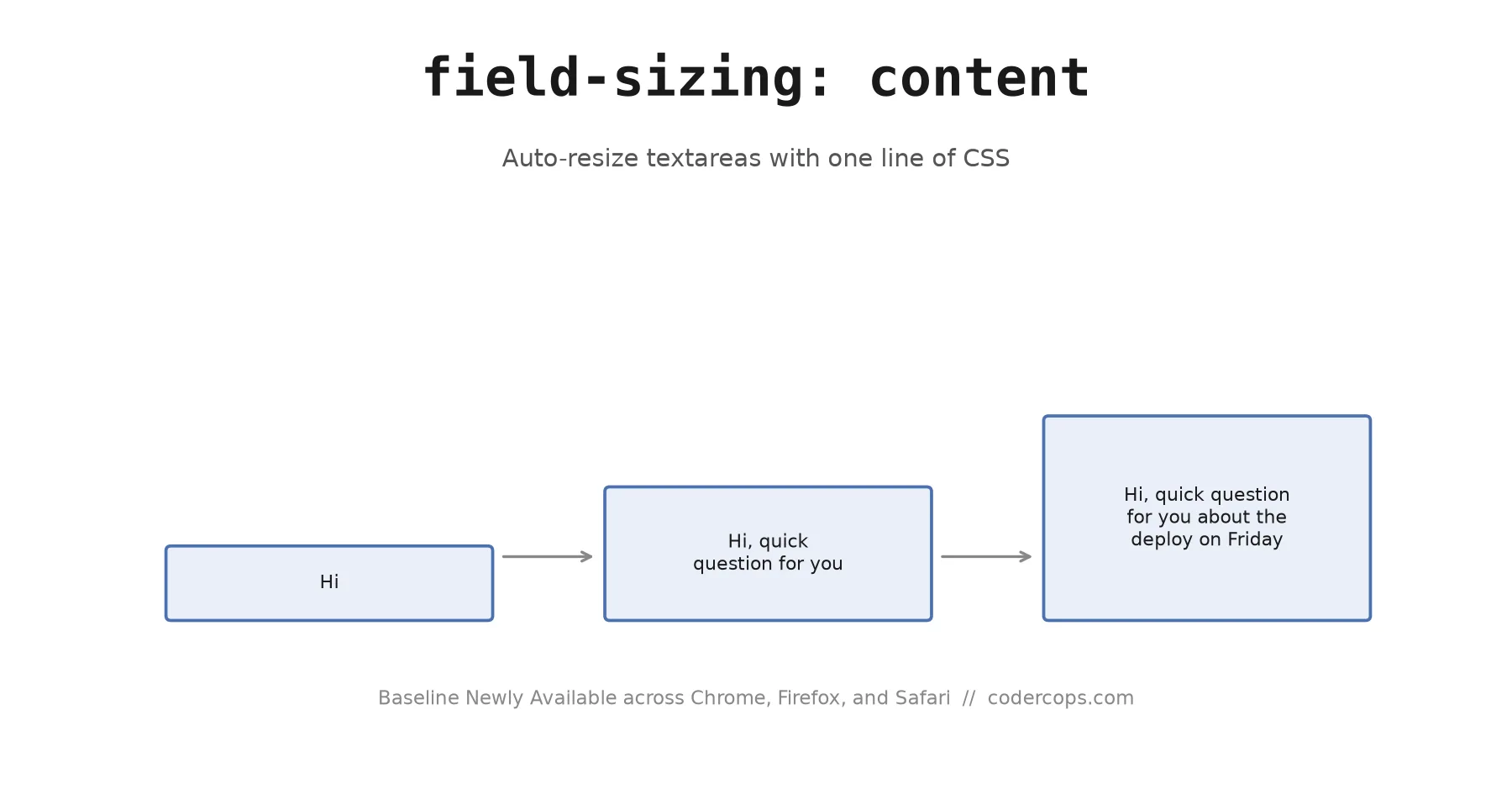
That’s it. Type into the textarea and it grows. Delete text and it shrinks. No event listener, no measured scrollHeight, no layout thrash from reading and writing dimensions in the same frame.
Why this took until 2026 to be usable
field-sizing: content became usable in June 2026 because Firefox 152 was the last of the three major browser engines to ship it, joining Chrome 123 (March 2024) and Safari 26.2 (December 2025). That combination pushed the property to Baseline Newly Available, meaning every major engine now supports it in its current release.
Chrome shipped field-sizing: content behind a flag back in March 2024, but a Chrome-only feature isn’t a feature you can ship to production users on Safari or Firefox. Safari added support in version 26.2, released December 2025. Firefox landing it in June 2026 is what closed the gap across Blink, WebKit, and Gecko. If you’ve been holding off on this property because “browser support” was a vague worry, that worry now has a specific, recent answer: it’s fine, as of a few weeks ago.
“Newly Available” is not the same as “safe for every user regardless of browser version,” though. Baseline Widely Available, the point where a feature has been out long enough that essentially all active browser installs support it, isn’t projected for this property until December 2028. If your traffic includes a meaningful share of users on older browser versions that never auto-updated, you still need a fallback path, which the last section covers.
The two values, and the one that matters
field-sizing takes two keyword values. fixed is the default and existing behavior: the control’s size comes from its width/height, rows/cols, or default UA sizing, same as every textarea has always worked. content is the new behavior described above.
/* Default behavior, unchanged from every textarea you've ever used */
textarea { field-sizing: fixed; }

/* New behavior: size follows content */
textarea { field-sizing: content; }
One easy mistake: field-sizing: content does nothing useful if you’ve also set a fixed width and height on the element, since those constraints still apply and override the content-based sizing. Drop explicit width and height (or at least height) for the property to actually take effect.
Capping growth with min-height and max-height
Used alone, field-sizing: content has no upper bound. A user pasting a few thousand words into a comment box will get a textarea that grows to match, which is rarely what you want in a real layout. The fix is standard CSS, using lh (line-height) units so the cap scales with the font size instead of being a hardcoded pixel guess:
textarea {
  field-sizing: content;
  min-height: 3lh;   /* never shorter than 3 lines */
  max-height: 12lh;  /* stop growing after 12 lines */
  overflow-y: auto;  /* scroll internally once max-height is hit */
}
This gives you a textarea that starts at a sensible size, grows naturally as someone writes a longer reply, and switches to an internal scrollbar instead of taking over the page once it hits your ceiling. The rows HTML attribute is still worth setting too, as a sizing hint that applies before your stylesheet has loaded and as a fallback for browsers that don’t support the property at all.
A complete, realistic example
Here’s a comment box pattern that combines the sizing behavior with the rest of what a real form control needs:
<textarea
  class="auto-textarea"
  rows="3"
  placeholder="Write a reply..."
></textarea>
.auto-textarea {
field-sizing: content;
min-height: 3lh;
max-height: 15lh;
overflow-y: auto;
resize: none; /* the manual drag-handle is redundant now */
padding: 0.75rem 1rem;
border-radius: 0.5rem;
border: 1px solid #d1d5db;
font: inherit;
line-height: 1.5;
}Turning off manual resize is a reasonable default once the field resizes itself, though it’s a judgment call. Some users still want to force a taller box for a reason the automatic sizing doesn’t anticipate, so leaving resize: vertical in place alongside field-sizing: content is also a defensible choice, and the two aren’t mutually exclusive.
It’s not just for textarea
field-sizing: content applies to more than <textarea>. On single-line text inputs (email, number, password, search, tel, text, url), it makes the field shrinkwrap to the current value: an empty input with no placeholder collapses to roughly the width of a text cursor, and an input with a placeholder widens enough to display the placeholder text in full. Per MDN’s field-sizing reference, the HTML size attribute stops doing anything once field-sizing: content is applied, so remove it rather than leave a value with no effect.
The more surprising case is <select>. A plain dropdown resizes its width to match whichever option is currently selected, instead of sizing to the widest option in the list the way selects have always worked by default. A multi-select, or a <select size="..."> list box, goes further: it grows to show every option without an internal scrollbar. Both are one-line opt-ins, select { field-sizing: content; }, and both matter for compact UI where a dropdown showing “USD” shouldn’t reserve the width of “United Arab Emirates Dirham.” If you’re already restyling dropdowns, our guide to the CSS base-select spec covers the rest of what’s newly stylable on native selects.
One more interaction worth knowing: maxlength on a text input or textarea still caps growth once the character limit is hit, so pairing field-sizing: content with maxlength gives you an upper bound without touching max-height or max-width at all.
Supporting browsers that don’t have it yet
For a product that still needs to support older browser versions, wrap the CSS in a feature query and keep the JavaScript version as the fallback:
@supports not (field-sizing: content) {
  /* your existing JS-driven auto-resize class or scrollHeight logic applies here */
}
This is the same progressive-enhancement pattern that’s applied to every other CSS feature with a JavaScript-equivalent predecessor: gap in flexbox before it had wide support, :has() before selector-based conditionals were reliable, and so on. Ship the CSS version for browsers that understand it, keep the old code path for the ones that don’t, and delete the JavaScript once your analytics show the older browsers aren’t worth the maintenance anymore.
If you’re auditing your design system for other places manual JavaScript sizing logic could come out now that the platform handles it natively, this is a good one to start with since it’s low-risk, easy to test, and the fallback path costs nothing to keep around during the transition. We cover the broader “what changed in browsers this year and is it safe to use” question in our state of CSS roundup and in Baseline 2026: Three Features Safe to Ship Now, both worth a read if field-sizing isn’t the only feature you’ve been putting off.
Frequently asked questions
- What does field-sizing: content actually do?
- It tells a form control, most commonly a textarea, but also text inputs and selects, to size itself based on its current content rather than a fixed dimension. As the user types more text, the element grows; delete text, and it shrinks back down, all handled by the browser's layout engine with no JavaScript.
- Is field-sizing supported in all browsers now?
- As of June 2026 it's supported in the current versions of Chrome, Firefox, and Safari, which is what 'Baseline Newly Available' means: it works in the latest release of every major engine, but older browser versions still in use won't recognize it. If you need to support those, wrap the enhancement in a @supports (field-sizing: content) feature query and keep a JavaScript fallback behind it.
- How do I stop a field-sizing textarea from growing indefinitely?
- Set max-height in lh (line-height) units, for example max-height: 10lh, and pair it with overflow-y: auto. Without a max-height, a large paste will grow the textarea as tall as the content requires, which can push it off screen. min-height keeps it from collapsing below a usable starting size.
- Does field-sizing replace the JavaScript auto-resize technique entirely?
- For any project that can require Baseline Newly Available browsers, yes, it removes the input-event listener, the scrollHeight read, and the height reset dance that the JavaScript version needs. Projects that still support older browsers should keep the JavaScript version as a fallback behind a feature query rather than dropping it outright.
- Does field-sizing work on regular text inputs, or only textarea?
- It applies to any form control the spec covers, which includes text inputs and select elements, not just textarea. A text input with field-sizing: content will widen as the user types, which is useful for compact forms like tag editors or inline-editable fields, though textarea's height-growth case is the one most people reach for it.
Sources
Sponsored
More from this category
More from Web Development



Sponsored
Discussion
Join the conversation.
Comments are powered by GitHub Discussions. Sign in with your GitHub account to leave a comment.
Sponsored